 Saoirse Mulligan 13 min read

Working with PDFs often feels harder than it needs to be. Most of us just want to perform simple tasks like combining two invoices, flipping a sideways page, or pulling out a short section of a long handbook. Yet traditional software can be slow, expensive, and filled with pushy upgrade alerts. Online options often demand an account, add watermarks, or make you wonder where your private records actually end up once they leave your computer.
We tested a full collection of browser-based utilities designed to solve this exact headache. Every utility on this list runs right inside your web browser. Your files stay on your machine, which means your personal papers, receipts, and client contracts are kept safe from remote storage. You never have to create a profile, install bulky programs, or wait in an upload queue.
Below, you will find thirteen simple tools built for everyday work. For each one, we show you what it does best, who benefits most, and a realistic walkthrough of how it handles common document jobs quickly.
At a glance
| Tool | What it does | Category | Steps | Runs in browser, no upload |
|---|---|---|---|---|
| Merge PDF | Combine several PDFs into one file, in the order you choose. | 3 | Yes | |
| Split PDF | Extract a page range from a PDF into a new file. | 3 | Yes | |
| JPG to PDF Converter | Turn one or more photos or scans into a single PDF. | 3 | Yes | |
| Rotate PDF | Turn sideways or upside-down PDF pages the right way up — all pages or just some. | 4 | Yes | |
| PDF to JPG Converter | Turn every page of a PDF into a sharp JPG image. | 4 | Yes | |
| PDF to Text Extractor | Pull the plain text out of a PDF to copy, edit or search. | 3 | Yes | |
| Reorder PDF Pages | Rearrange, drop or duplicate pages in a PDF. | 3 | Yes | |
| Delete PDF Pages | Remove blank, duplicate or private pages from a PDF before you share it. | 4 | Yes | |
| Add Page Numbers to PDF | Stamp clean page numbers onto every page of a PDF. | 4 | Yes | |
| Watermark PDF | Add a diagonal DRAFT or CONFIDENTIAL watermark across every page. | 4 | Yes | |
| PDF Metadata Viewer & Editor | See and change a PDF's title, author and keywords. | 3 | Yes | |
| Text to PDF | Turn plain text into a clean, paginated PDF document. | 3 | Yes | |
| PDF Page Size Checker | See every page's size in inches and millimetres, and spot Letter vs A4. | 3 | Yes |
1. Merge PDF
This tool is perfect for freelancers and job seekers who need to bundle separate paperwork into a single tidy file. Imagine you are sending a job application. You have your resume, a customized cover letter, and two reference letters saved as individual documents. Instead of sending four loose attachments that clutter someone's inbox, you drop all four files into the merge tool. You drag them into the correct sequence with your cover letter first, and save them as one neat submission in seconds.

How to use it
- Choose two or more PDF files.
- Use the arrows to put them in order.
- Press Merge and download the combined PDF.
Tip: Password-protected PDFs need to be unlocked before merging.
2. Split PDF
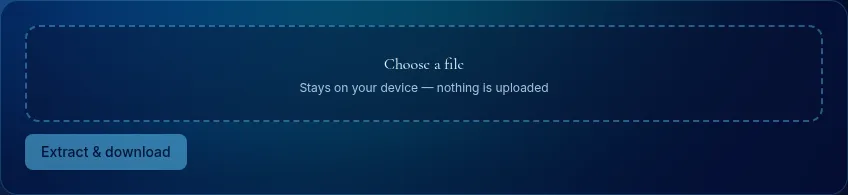
This tool is best for anyone who receives massive documents but only needs to share a tiny portion. Think of a scenario where your bank issues a comprehensive quarterly statement covering twelve months across forty pages. You only need to show your accountant the transactions from page eighteen through twenty-two. With this utility, you select that exact page range, create a new lightweight file instantly, and share the necessary numbers without exposing your entire banking history.
How to use it
- Choose a PDF.
- Enter the pages to keep, e.g. 1-3, 5, 8-10.
- Download the new PDF.
Tip: To split every page separately, extract them one at a time.
3. JPG to PDF Converter
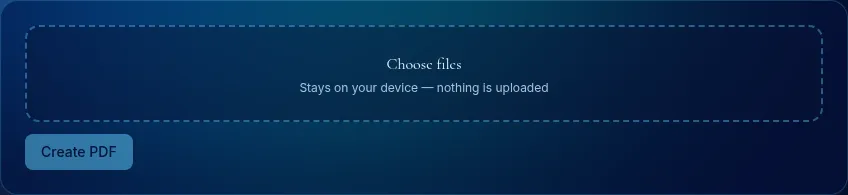
Ideal for business travelers, tenants, and small business owners who take pictures of paper documents on their phones. Say you just finished a business trip and snapped photos of three separate dinner receipts and a parking stub. Sending four random image files looks messy. By placing the pictures into this tool, you can arrange them in chronological order and export a single polished document ready for your company expense report.
How to use it
- Choose one or more JPG or PNG images.
- Arrange their order.
- Press Create PDF and download it.
Tip: Compress large photos first if you need a small PDF for email.
Open the free JPG to PDF Converter →
4. Rotate PDF
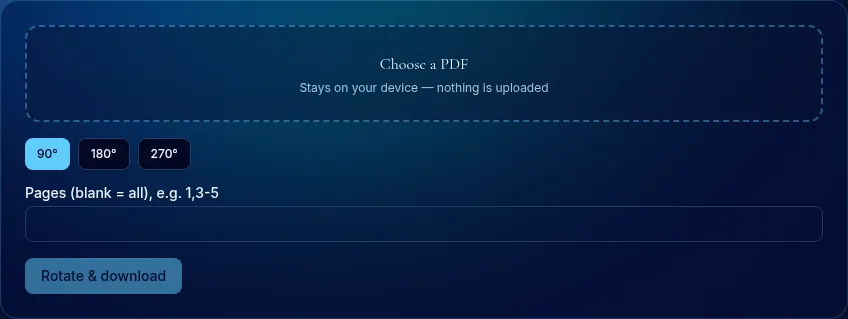
This utility solves the familiar frustration of poorly scanned forms that appear sideways or upside down. Consider a real estate contract where two addendum pages were fed into the office scanner the wrong way. Reading them means tilting your head or fighting with your default viewer. Using this tool, you can pick out only the sideways pages, turn them ninety degrees clockwise, and produce an aligned file that opens properly on every screen.
How to use it
- Choose the PDF that has pages facing the wrong way.
- Pick the rotation: 90° turns clockwise, 270° turns anticlockwise, 180° flips upside down.
- Leave the page box blank to rotate everything, or list pages such as 2,5-7.
- Press Rotate and download the corrected file.
Tip: Open the result in your usual PDF viewer to confirm before you send it.
5. PDF to JPG Converter
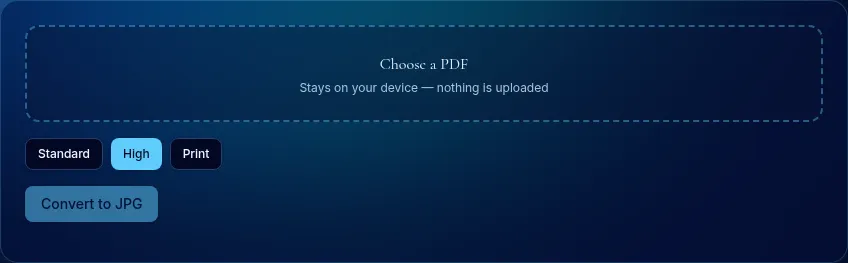
Great for designers, students, and social media managers who want to turn a digital page into a shareable visual. Suppose you designed an event poster in a layout program and saved it as a high-resolution document, but the message board or website only accepts standard image formats. You run your document through this tool to produce a crisp photo file that you can post on forums, embed in presentations, or send in a chat message.
How to use it
- Choose a PDF.
- Pick a quality: Standard for screens, High for most uses, Print for posters and detail.
- Press Convert and wait while each page renders.
- Click any page thumbnail to download it.
Tip: To combine images back into a PDF later, use JPG to PDF.
Open the free PDF to JPG Converter →
6. PDF to Text Extractor
This tool is a lifesaver for researchers, writers, and students who need to extract raw copy from locked documents. Imagine you are reviewing an old public report to write an article. The file does not let you easily highlight quotes because of odd formatting layers. By passing the document through this text tool, you quickly grab the unformatted sentences to paste straight into your favorite word processor or research notes.

How to use it
- Choose a PDF.
- Wait a moment while the text of each page is read.
- Copy the text or download it as a .txt file.
Tip: Multi-column layouts may be read column by column or across, depending on how the PDF was made.
Open the free PDF to Text Extractor →
7. Reorder PDF Pages
Perfect for anyone preparing presentations, portfolios, or multi-page brochures that need last-minute adjustments. Picture building a product catalog where your team decides the pricing table should appear before the technical specifications instead of after. Rather than opening the original design project and exporting everything again, you open this tool, drag the pricing sheet up two spots, duplicate a shared order form, and download your updated guide immediately.

How to use it
- Choose a PDF.
- Edit the page order.
- Download the reordered PDF.
Tip: Repeat a number to include a page twice.
Open the free Reorder PDF Pages →
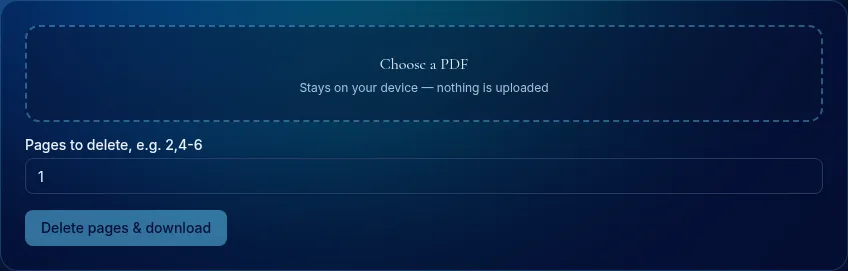
8. Delete PDF Pages
This utility is made for professionals who want to clean up messy files before showing them to clients. Imagine printing an online report to a file, only to find three blank sheets scattered throughout and an extra sheet at the back showing internal system notes. Instead of distributing an unpolished draft, you tap the trash icon on those unnecessary sheets and export a tight, professional packet.
How to use it
- Choose your PDF.
- Type the pages to delete, for example 1 for the cover or 3,8-10 for several.
- Press Delete pages and download the new file.
- Check the result before sending — the original on your device is never changed.
Tip: To keep only a few pages from a long file, Split PDF may be quicker.
Open the free Delete PDF Pages →
9. Add Page Numbers to PDF
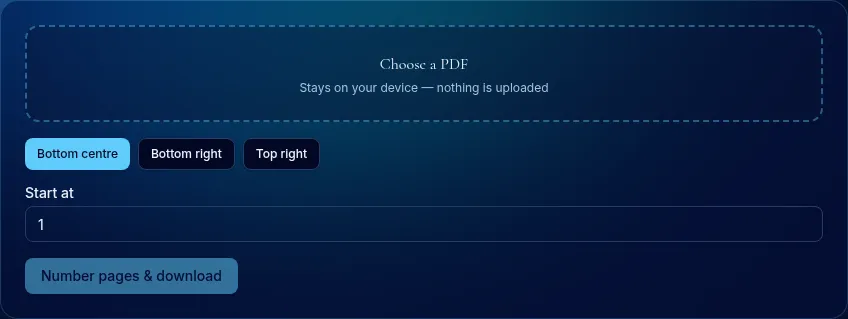
A must-have for legal assistants, teachers, and committee members who assemble large packets from multiple sources. When you combine materials from several authors, the original numbering often restarts or disappears entirely, making phone discussions difficult. This tool applies clean, consecutive numbers across the bottom of every sheet so everyone in your meeting can flip to page fourteen together without confusion.
How to use it
- Choose a PDF.
- Pick a position: bottom centre, bottom right or top right.
- Set the starting number — useful when this file continues from another.
- Press Number pages and download.
Tip: Start at a higher number when the PDF is part two of a larger bundle so the numbering runs on.
Open the free Add Page Numbers to PDF →
10. Watermark PDF
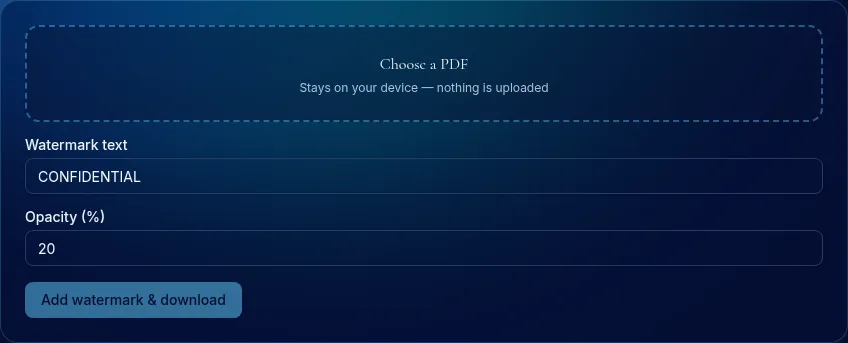
Helpful for consultants, writers, and founders who want to distribute preliminary drafts safely. Suppose you are sharing an early draft of a proposal with an external advisor for feedback. You do not want the draft mistaken for a finished agreement. This tool stamps a neat diagonal label across every sheet, making it clear to any reader that the material is under review.
How to use it
- Choose a PDF.
- Type the watermark text, for example DRAFT, SAMPLE or your company name.
- Set the opacity — 15–25% is readable without hiding content.
- Press Add watermark and download.
Tip: A watermark discourages casual copying but is not security — anyone with an editor can remove it.
11. PDF Metadata Viewer & Editor
Ideal for detail-oriented professionals who care about clean presentation and privacy before delivering work to clients. Often, a saved file keeps old hidden data, such as a previous author's name or an internal working title like draft_v3_final. You can inspect this information, remove unintended labels, and add a clean title and subject that match your company's presentation standards.

How to use it
- Choose a PDF.
- Review and edit the properties.
- Download the updated PDF.
Tip: Separate keywords with commas.
Open the free PDF Metadata Viewer & Editor →
12. Text to PDF
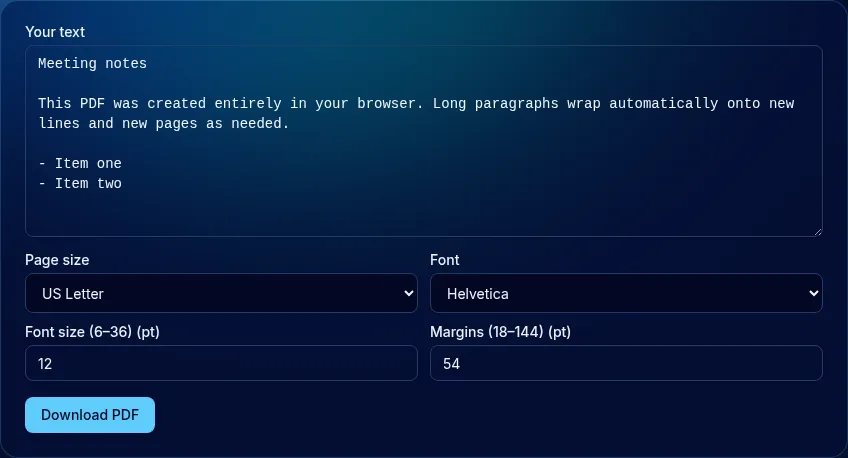
Best for coders, writers, and administrative staff who need to turn plain notes into shareable read-only records. Imagine you keep simple text logs or minutes from a weekly team call. Rather than leaving them as raw text that looks unfinished, you drop the text into this converter. It lays out the paragraphs with clean margins and proper page breaks, ready to archive or email.
How to use it
- Paste or type your text.
- Choose page size, font size and margins.
- Download the PDF.
Tip: Characters outside Western European alphabets are replaced with “?” due to the built-in PDF fonts.
13. PDF Page Size Checker
Essential for print shops, authors, and international teams who handle mixed regional formats. For instance, you receive a booklet prepared by a coworker overseas and need to print copies locally. This checker shows you instantly whether the document uses North American Letter or standard international A4 dimensions, saving you from cut-off margins, wasted paper, and printer errors.

How to use it
- Choose a PDF.
- Read the summary of page sizes.
- Check the per-page table for odd pages.
Tip: US Letter is 8.5 × 11 in; A4 is 210 × 297 mm — slightly narrower and taller.
Open the free PDF Page Size Checker →
Key takeaways
- Local privacy: Every tool works inside your browser, meaning your private files are never uploaded to remote servers.
- No barriers: You can edit, merge, or convert your documents without signing up, entering an email address, or buying software.
- Targeted fixes: Single-purpose tools let you finish common jobs like rotating a scan or deleting empty pages in seconds.
- Fewer errors: Checking page sizes, cleaning hidden metadata, and numbering pages ensures your work looks professional before you send it out.
Frequently asked questions
Is there a file limit?
No fixed limit; memory on your device is the only constraint.
Does it work on scanned PDFs?
Yes — every page is copied whether it contains text or images.
Is there a page limit?
No fixed limit.
Will rotating reduce quality?
No. Nothing is re-compressed; the viewer simply displays the page at a different angle.
Is my PDF uploaded?
No. pdf.js runs inside your browser and draws pages on a local canvas.
Are these tools really free, and do they upload my files?
Yes, they are free with no sign-up, and no. Each tool runs inside your browser tab, so your text, images and documents stay on your device. Closing the tab clears them.
Keep exploring
- Markup vs Margin vs Discount: Stop Mixing Them Up
- 10 More Free Text & writing Tools Worth Bookmarking (Part 2)
- Build a Debt Payoff Plan with Four Free Calculators
- How to Use a Free Hourly to Salary Calculator: A Complete Walkthrough
- Browse all 278 free tools
Prose in this article was drafted with AI assistance; tool steps, screenshots and figures come directly from the tools themselves. Reviewed against our editorial policy.
From our own rounds
Measured on The Curator, from real sessions people played on this site — not a third-party dataset.
- Rounds played here
- 265
- Questions per round
- 1.7
Most-played topics right now: Product Validation (1).
Play a round and add to these numbersSubscribe to The Curator updates
New articles, site messages and notifications — straight to your inbox. Unsubscribe anytime and your details are deleted.
Rate this article
Discussion
Comments are moderated. Read our editorial policy.